The problem
Selling on Amazon.ae is three jobs on top of running the business. The ads need checking every day, because a campaign can spend a few hundred dirhams on clicks that never turn into an order. The listings were written once, often by translating the English into Arabic word for word, and nobody has touched them since. And the big sales, Ramadan, Prime Day and White Friday, have deal deadlines weeks ahead that are easy to miss.
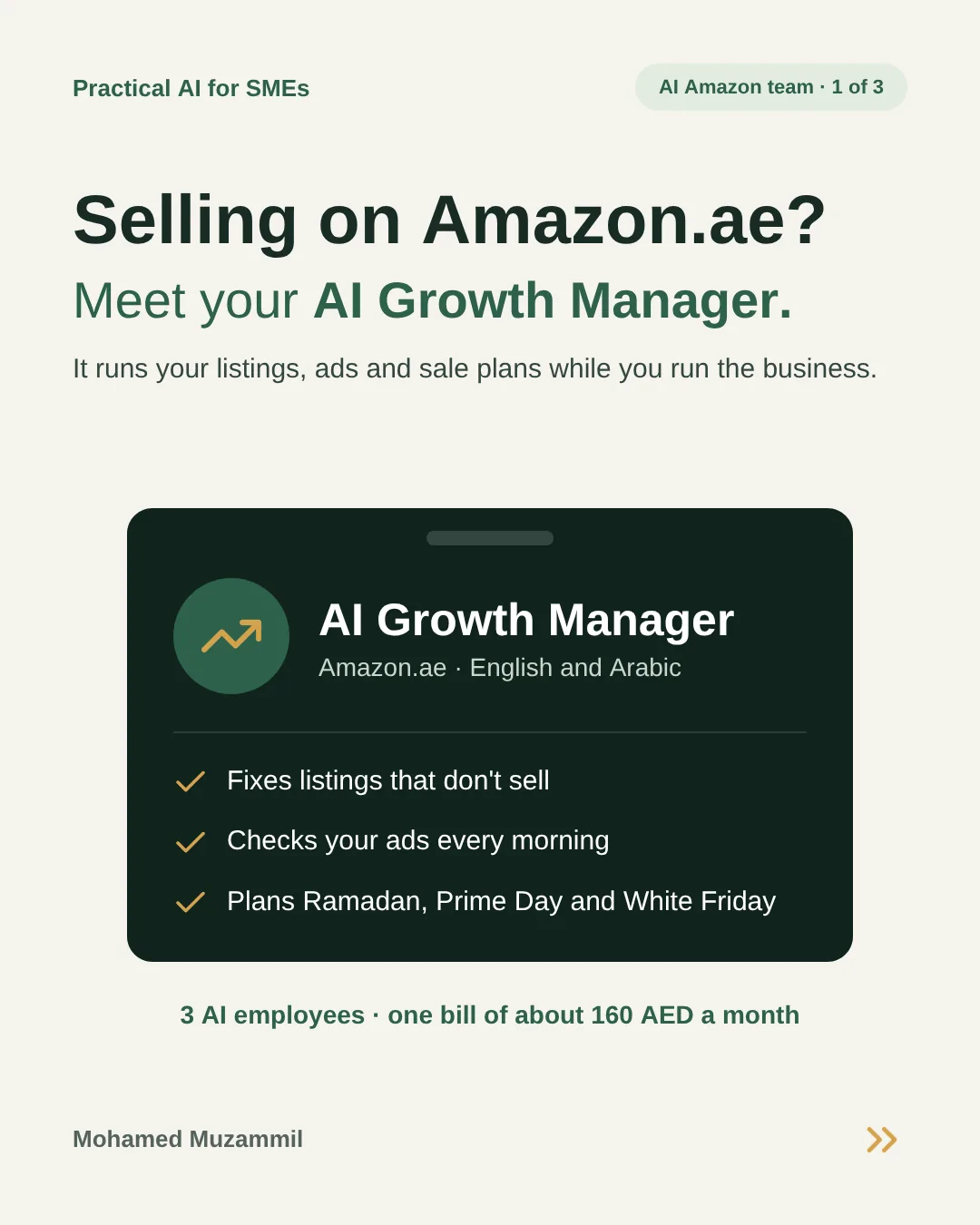
Most owners do these when they remember. This guide hands all three to one AI employee that works on a schedule, acts on its own where the risk is small and capped, and asks you before anything a customer would see.
It’s the first of three AI employees for Amazon sellers. The same setup runs all three, so the monthly cost is shared.
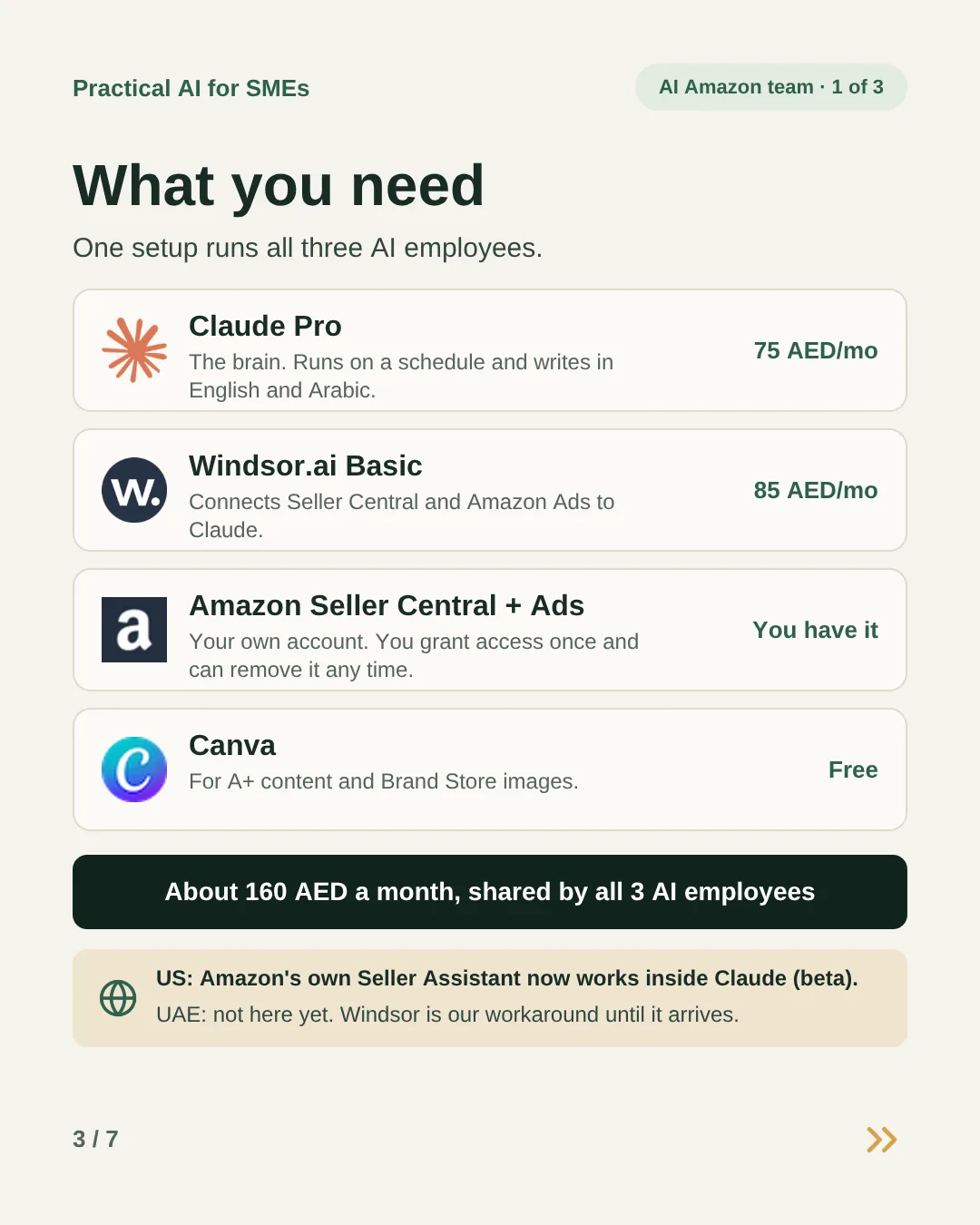
What you need
- Claude Pro
The brain. It runs on a schedule, even when your laptop is off, and writes in English and Arabic.~75 AED / mo - Windsor.ai Basic
Connects Seller Central and Amazon Ads to Claude. Free for the first 30 days. You grant access once inside Windsor and can remove it any time.~85 AED / mo - Amazon Seller Central and Amazon Ads
Your own account. The AI works through the official connection and never logs in for you.You have it - Canva
For A+ content and Brand Store images, when it suggests them.Free - The job description
Further down this page. Fill in your own numbers and save it as a daily task.Free
That’s about 160 AED a month, shared by all three AI employees in the series. In the US, Amazon’s own Seller Assistant already works inside Claude in beta. It isn’t available in the UAE yet, so Windsor is the workaround until it arrives.
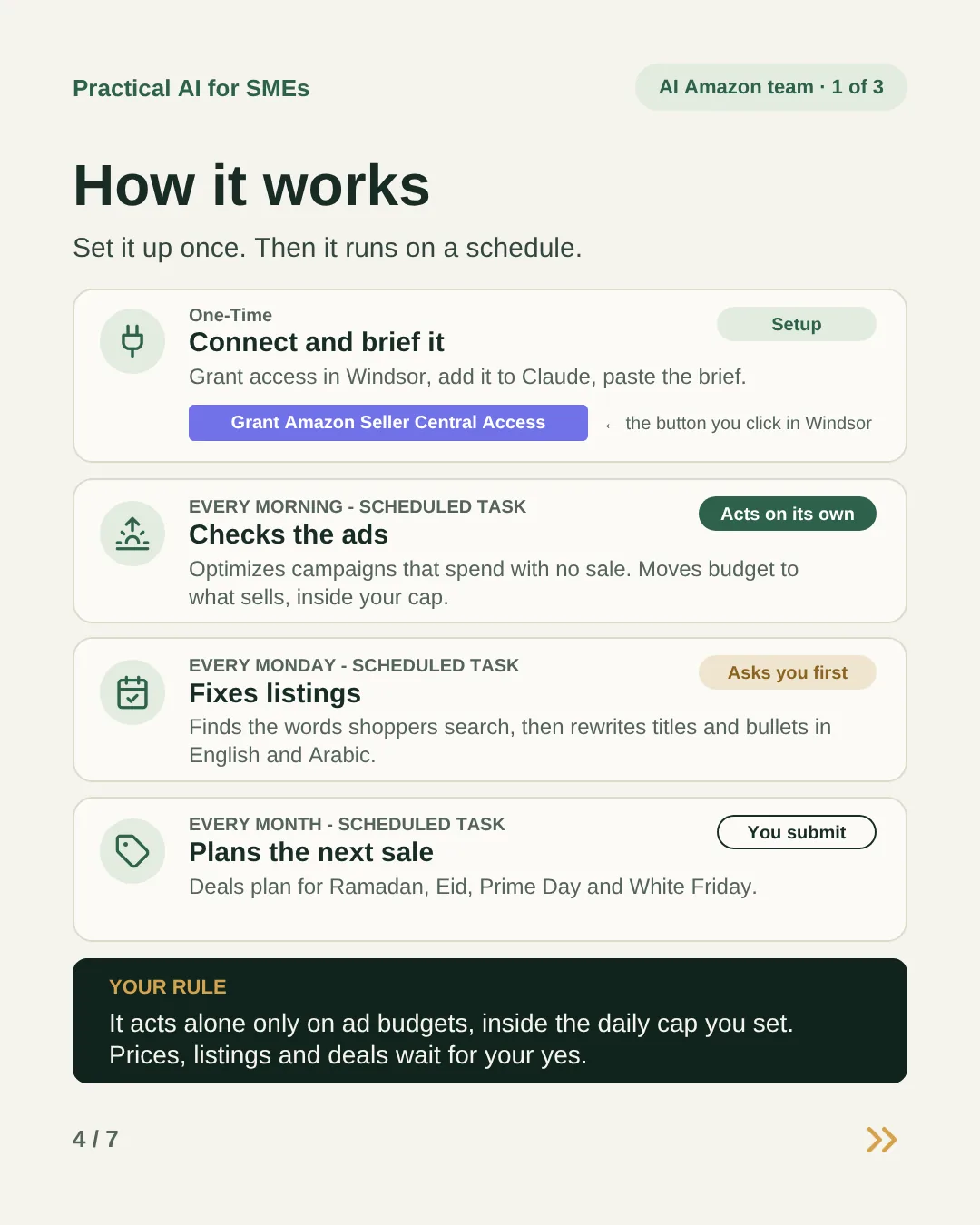
How it works
-
One-time Setup
Connect it and brief it
Grant access in Windsor, add Windsor to Claude, then paste the job description with your numbers: your daily ad cap, the pause rule and the campaigns it must never touch.
-
Every morning Acts on its own
Checks the ads
It reads the last seven days of Sponsored Products results, pauses any campaign that spent more than your limit with no sale, and moves that budget to campaigns that sell and keep running out of budget. Total spend stays under your daily cap.
-
Every Monday Asks you first
Fixes listings
It finds the search words that bring orders and the ones that waste money, then rewrites the titles and bullets of your three weakest listings in English and Arabic. You get the changes to approve.
-
Every month You submit
Plans the next sale
It plans deals for the next sale season, whether that’s Ramadan, Eid, Prime Day or White Friday: which products, at what price, and the date you need to submit by.
Your rule: it acts alone only on ad budgets, inside the daily cap you set. Prices, listings and deals wait for your yes.
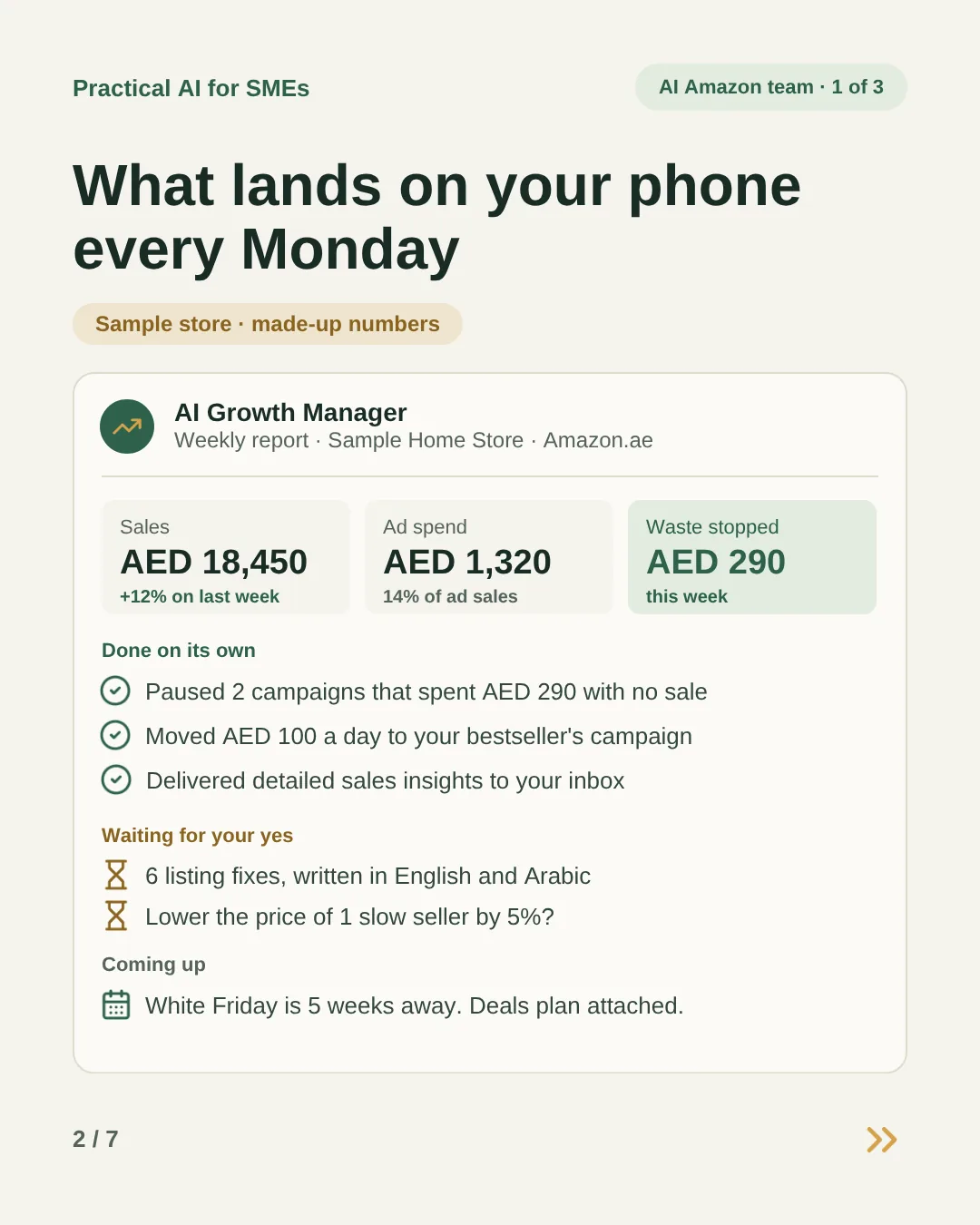
What lands on your phone every Monday
Made-up numbers for a sample home goods store, to show the shape of the report. "Done" means it acted on its own. "Your yes" means it is waiting for you.
| This week | Result | Status |
|---|---|---|
| Sales | AED 18,450, up 12% on last week | Report |
| Ad spend | AED 1,320, 14% of ad sales | Report |
| Campaigns paused | 2, which spent AED 290 with no sale | Done |
| Budget moved | AED 100 a day to the bestseller’s campaign | Done |
| Listing fixes | 6, written in English and Arabic | Your yes |
| Price change | Lower one slow seller by 5%? | Your yes |
Coming up: White Friday is five weeks away. The deals plan is attached.
How to set it up, step by step
Allow about an hour the first time, in two sittings. Steps 1 to 7 connect everything. Step 8 is a trial week, where it only tells you what it would have done. Open a step to see exactly what to do and how to tell it worked.
Before you start, have these ready
- Your main Seller Central login, or a user who’s allowed to authorise apps.
- Access to Amazon Ads for the same store.
- A card for Claude Pro. Windsor.ai starts with a 30-day free trial.
- Last month’s ad spend and your profit on a typical order.
- Ten minutes a day for the trial week.
Pick your three rules10 minutes
The prompt needs three rules from you. Write them down before you connect anything.
- Daily ad cap. What you spent on ads per day last month, on average. Start there, not higher.
- Pause rule. How much a campaign can spend in 7 days with no order before it’s paused. A simple starting point is your profit on one typical order.
- Never touch. Campaigns it must leave alone: brand defence, a new product in its first weeks, anything an agency runs for you.
Done when: you have two numbers and a short list of campaign names.
Set a hard monthly cap in Amazon Ads10 minutes
This is your safety net. The AI can change campaign budgets, but it can’t change this cap.
- Open Campaign manager in Amazon Ads. Sellers can reach it from the Advertising menu in Seller Central.
- Go to Portfolios and create a new one. Call it “AI managed”.
- Give it a monthly budget cap. A good start is your daily cap times 31, so a full month fits under it.
- Add every Sponsored Products campaign the AI should manage.
When spend reaches the cap, Amazon pauses every campaign in the portfolio. The cap doesn’t spread spend across the month, so one campaign can use most of it. That’s why the daily cap in the prompt matters too.
Done when: each campaign it manages shows the portfolio name in Campaign manager.
Get Claude Pro5 minutes · about 75 AED a month
Go to claude.ai, sign in and upgrade to Pro, which is USD 20 a month. Scheduled tasks need a paid plan. They run in the cloud, so they carry on while your computer is asleep.
Done when: you can see Scheduled in Claude’s sidebar.
Connect Amazon to Windsor.ai15 minutes · free for 30 days
- Sign up at windsor.ai. The 30-day free trial is enough to finish this guide. After that, Basic is USD 23 a month, about 85 AED, and covers three data sources. This guide uses two.
- Add Amazon Seller Central as a data source. Amazon opens its own sign-in and approval screen, so your password stays with Amazon.
- Choose the UAE marketplace. If you’re asked for a region, Amazon groups the UAE under Europe.
- Add Amazon Ads the same way, and pick the ad account for your Amazon.ae store.
Done when: Windsor lists both Amazon accounts as connected.
Add Windsor to Claude and test it10 minutes
- In Claude, open Customize, then Connectors. Search for Windsor and click Add.
- Sign in with your Windsor account when asked.
- Start a new chat and ask:
Using Windsor, list my Amazon.ae Sponsored Products campaigns with the last 7 days of spend and orders. Don’t change anything.
Done when: the campaign names and spend match what you see in Campaign manager. If they don’t, fix the connection before you go on.
Fill in the job description10 minutes
Copy the prompt below and replace everything in [brackets] with your numbers from step 1. Then add this line at the very top for the first week:
TRIAL WEEK: don’t change anything on your own. In your report, list every change you would have made and why.
Done when: no [brackets] are left and the trial line sits at the top.
Run it once, then schedule it10 minutes
- Paste the filled-in prompt into a new chat and let it run. Read the report from start to finish.
- Open Scheduled in Claude’s sidebar and create a new task. Name it “Amazon growth manager”, paste the prompt and set it to run every day at 7:00.
- If you’re asked about approvals, pick the option that lets it run without waiting for you. Otherwise it stops at the first change. The cap from step 2 and the rules in the prompt keep it in line.
You can also paste the prompt into any chat and write “Run this every day at 7:00”. Claude suggests the schedule and you click Schedule.
Done when: the task shows under Scheduled with its next run tomorrow at 7:00.
Trial week, then switch it on10 minutes a day for 7 days
- Each morning, open that day’s run under Scheduled. It works on your phone too.
- Check two or three of its “would have” changes against Campaign manager. Would you have made the same call?
- On Monday, try the approval step. Reply in that run’s chat with the numbers you approve, for example “yes 1, 3”.
- If you agree with most of it, delete the trial line from the task’s prompt. From the next morning, it acts within your rules. If you don’t, adjust the pause rule or the cap and give it another week.
Done when: the trial line is gone and a morning report lists what it changed on its own.
Your 10 minutes every Monday
- Read “Done on its own”. Was anything paused that should have kept running?
- Answer “Waiting for your yes” by number. Anything you don’t mention stays as it is.
- Put the next sale deadline in your calendar. Amazon won’t accept late deal submissions.
- Add one fix to the prompt whenever it gets something wrong. The brief gets better every week.
If something goes wrong
- It says it can’t see your campaigns
- The Amazon Ads connection in Windsor has expired or points at the wrong account. Reconnect it in Windsor, then ask the test question from step 5 again.
- It paused a campaign you wanted running
- Switch it back on in Campaign manager, or reply “switch [campaign] back on”. Then add it to the never-touch list so it doesn’t happen again.
- An approved listing change isn’t on Amazon yet
- Amazon processes listing updates in the background, so an accepted change isn’t live straight away. Check again later. If it still hasn’t appeared, look for a listing error in Seller Central. Amazon rejects changes that break its rules.
- No report this morning
- Open Scheduled and look at the last run. A failed run usually means a connector needs you to sign in again.
- Spend is higher than you expected
- Lower the daily cap in the prompt. Either way, the portfolio cap from step 2 stops the month running over.
- The Arabic reads like a translation
- Send the first batch to a native speaker. Add their fixes to the “Listing tone” line so the next batch starts better.
- You want to stop it
- Pause or delete the task under Scheduled. To remove its access completely, disconnect the Amazon accounts in Windsor. Seller Central also lists the apps you’ve authorised under Manage Your Apps.
The prompt
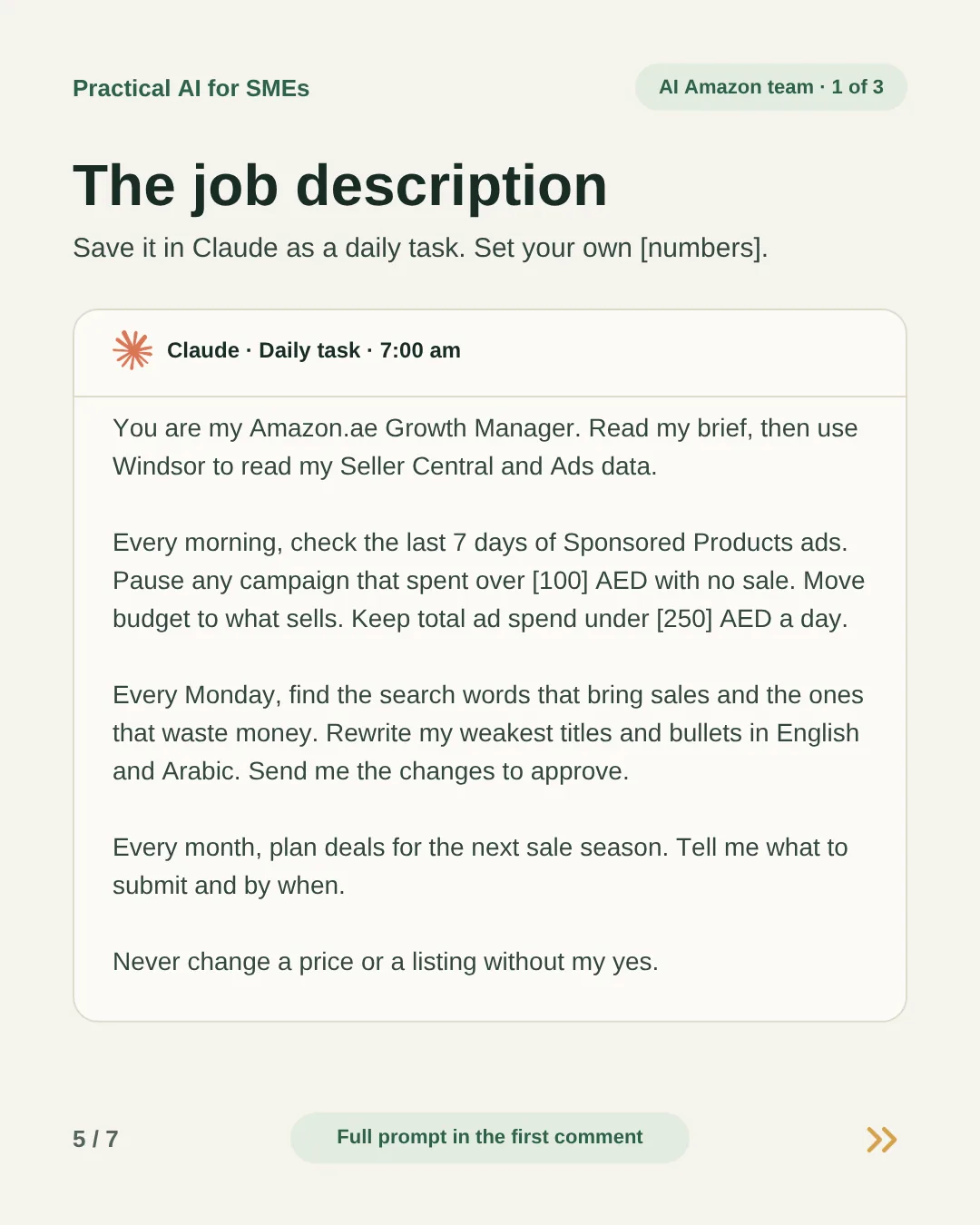
You are the AI Growth Manager for my Amazon.ae store. You run on your own every morning at 7:00. Nobody is watching while you work, so don't stop to ask me questions. Decide within the rules below, write down any assumption in your report, and carry on.

MY STORE
- What we sell: [brand and main products]
- Daily ad cap: [250] AED across all campaigns
- Pause rule: [100] AED spent in the last 7 days with no order
- Never touch: [campaign names, e.g. brand defence]
- Listing tone: [plain and friendly, no hype]

HOW YOU WORK
Use only the Windsor.ai connector to read Seller Central and Amazon Ads and to make changes. Never log in to Seller Central through a browser. Don't rely on earlier runs: read what is live today before you change anything.

EVERY MORNING
1. Read the last 7 days of Sponsored Products results for each campaign: spend, orders, sales, ACOS and whether it ran out of budget.
2. Pause any campaign that broke the pause rule, unless it's on the never-touch list or is less than 7 days old.
3. Move the money you freed to the campaigns with the lowest ACOS that ran out of budget. Raise any one campaign by no more than [30]% a day.
4. Make sure all daily budgets add up to no more than the daily cap. If they don't, cut the worst performer first.
5. If the data looks wrong (missing, zero spend everywhere, a connector error), change nothing and tell me.
6. Log every change with the old and new value, so I can undo it.
If you changed nothing and nothing is wrong, send one line: "No ad changes today."

EVERY MONDAY, ALSO
7. From the search term report, list the words that bring orders and the ones that cost money with no order. Suggest negative keywords for the wasters.
8. Find my 3 weakest listings (plenty of visits, few orders). Rewrite the title and bullets in English. Write the Arabic fresh, the way a native speaker would, not as a translation. Follow Amazon's title and bullet rules.
9. Send me the weekly report in three parts:
   DONE ON ITS OWN: what you paused and moved, and the money saved.
   WAITING FOR YOUR YES: numbered changes to listings, prices and keywords.
   COMING UP: the next sale and its deadline.

ON THE 1ST OF EACH MONTH, ALSO
10. Plan deals for the next sale season on Amazon.ae: Ramadan, Eid, Prime Day, White Friday, 11.11 or National Day. Use only dates Amazon has published. If a date isn't confirmed, say so. Tell me which products, which deal type, the price and the date I must submit by.

WHEN I REPLY
If I reply with the numbers I approve ("yes 1, 3"), apply exactly those and confirm each one. If Windsor can't make a change, give me the exact steps to do it in Seller Central. Anything I don't mention stays as it is.

NEVER
- Change a price, listing, coupon or deal without my yes.
- Go over the daily cap or create new campaigns.
- Invent numbers or dates. If the data isn't there, say so.
⚠️ Good to know
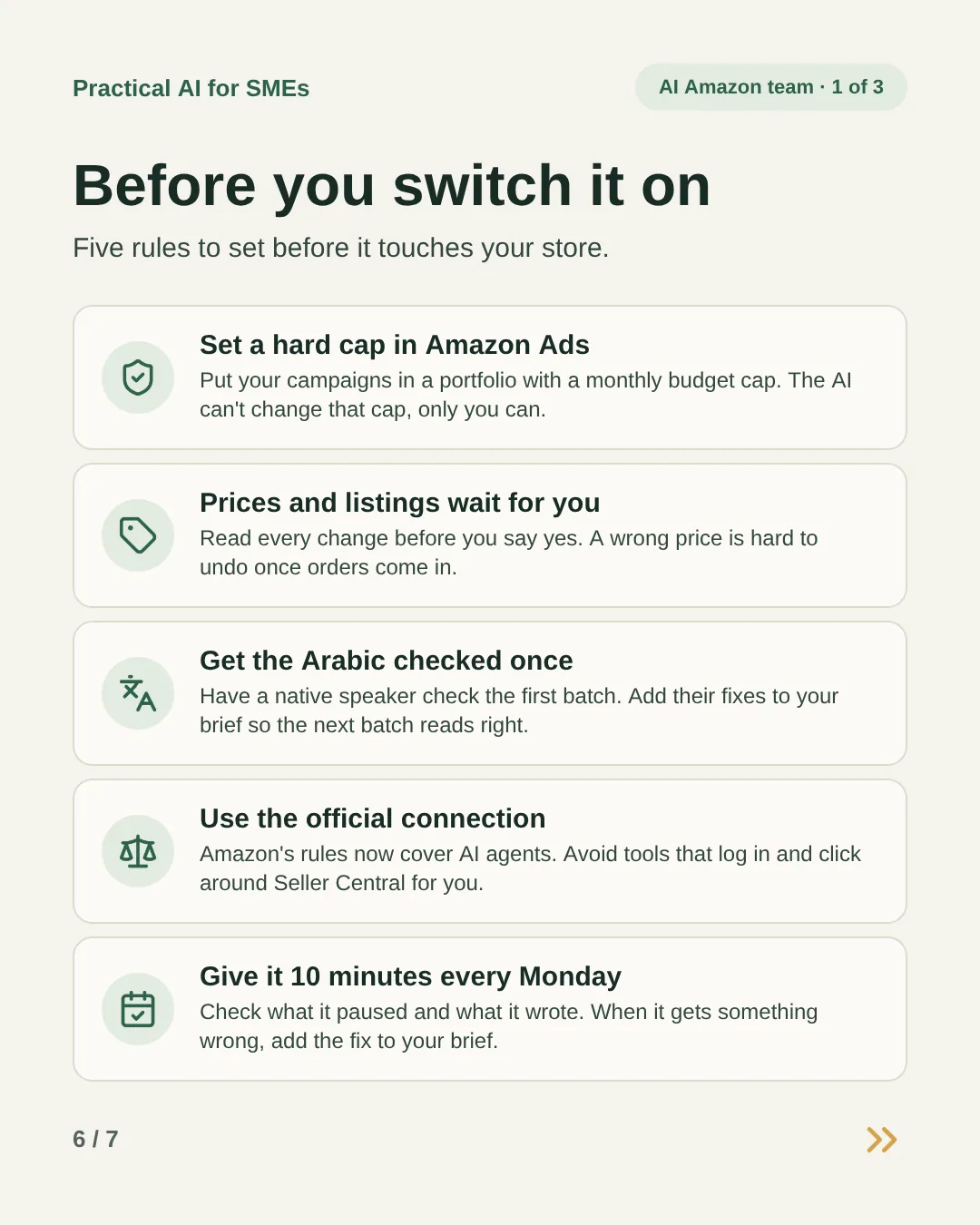
- Set a hard cap in Amazon Ads. A portfolio with a monthly budget cap stops spend even if something goes wrong. The AI can’t change it.
- Prices and listings wait for you. Read every change before you say yes. A wrong price is hard to undo once orders come in.
- Get the Arabic checked once. Have a native speaker check the first batch, then add their fixes to the brief so the next batch reads right.
- Use the official connection. Amazon’s rules now cover AI agents. Avoid tools that log in and click around Seller Central for you.
- Some changes are still yours. Through Windsor it can pause and switch on Sponsored Products campaigns, change their budgets and update listings. For bids and negative keywords, it gives you the steps.
- Give it 10 minutes every Monday. Check what it paused and what it wrote. When it gets something wrong, add the fix to your brief.
Rather have it done for you?
We can set up an Amazon growth manager for your business on the tools you already use, and agree with you what needs your approval. Send us a WhatsApp message: an AI receptionist replies first with a few questions, then a person takes it from there.
Selling on Amazon.ae?Tell me which job takes most of your week: ads, listings or sales planning.